A Document Camera can make a paper worksheet, product sample, or handwritten diagram visible in seconds. The right model, however, depends on where and how it will be used. A classroom may need quick autofocus and simple controls. A training room may prioritize a flexible arm, clear image capture, and reliable connections. For global buyers, small differences matter: plug types, supported software, warranty coverage, and local service can affect daily use.
Document-camera procurement specialist Daniel Mercer puts the choice this way: “Buy for the room, the workflow, and the support you can actually access.” Treat that as a practical buying principle, not a substitute for checking each supplier’s specifications. A bright showroom image does not guarantee sharp text under your own lights. Test a fine-print page. Move the camera arm. Check whether the connection works with your existing display.
This guide outlines seven tips for comparing models, suppliers, and total ownership costs. It covers image quality, connectivity, compatibility, durability, and after-sales support. A low purchase price can look appealing. Sometimes it is. But missing accessories or slow replacement-part support may change the calculation. Ask direct questions, request current documentation, and compare answers in writing. Some details are easy to overlook. That is worth admitting before an order, not after the camera arrives.
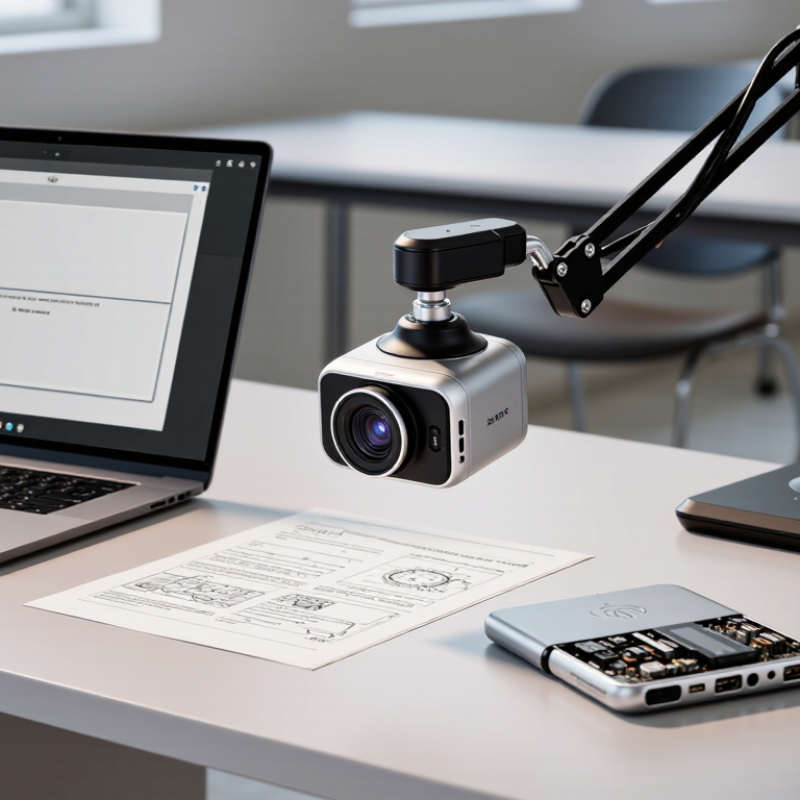
A document camera should match the work people actually do, not just look impressive on a specification sheet. A teacher showing workbook pages has different needs from a team reviewing maps or a clerk capturing receipts. Write down the usual materials, how often they are displayed, and whether users need live viewing, saved images, or both. Small details matter. Glossy pages can reflect ceiling lights, while bound books may not lie flat.
Measure the largest document you expect to capture, then check the usable capture area at the camera’s normal working height. A stated maximum size can be misleading if page edges disappear when the camera is angled or zoomed. Allow room for hands and page turns, too. A4 or Letter pages may be enough for routine worksheets, but large charts need a wider field of view. If oversized materials appear only occasionally, consider whether repositioning them is acceptable. It may be, though it can slow a lesson or meeting.
Before choosing, test the camera with real samples: a fine-print page, a folded receipt, and a glossy photograph. Check that text stays readable across the frame, not only in the center. I still find this easy to overlook. Also confirm the capture area with the document flat and in its typical position; advertised dimensions alone do not show how the setup will work on your desk.
4K UHD resolution measures 3,840 × 2,160 pixels, or about 8.29 megapixels. It can reveal small labels, pencil notes, and fine lines on a document. Yet pixel count alone does not guarantee a sharp image. Lens quality, sensor performance, focus stability, and room lighting all matter. A camera may offer 4K on paper but render page corners softly. Numbers help.
Tip: Compare sample images using the same printed page. Choose one with dense text, thin diagrams, and a few handwritten marks. Inspect the center and corners on a large display, rather than judging only from a product preview. Also test a moving page; blur or compression may hide detail during live lessons or meetings.
Ask whether the camera can output its full resolution through your intended connection and software. Check file size and storage needs, too, since higher-resolution captures can take more space. I would not pay extra for 4K without testing real documents. That judgment can be imperfect: glossy paper, uneven lighting, or a hurried setup may affect results. Use consistent conditions, then compare readability at the distance your audience will actually view it.
| Buying factor | What to compare | Practical benchmark or fact | Why it matters |
|---|---|---|---|
| 1. Image resolution | Compare the camera’s native output resolution, not only an upscaled output setting. | 4K UHD: 3,840 × 2,160 = 8,294,400 pixels (about 8.29 MP). Full HD: 1,920 × 1,080 = 2,073,600 pixels (about 2.07 MP). 4K UHD has four times as many pixels as Full HD. | More pixels can preserve fine text and detail, especially when zooming or displaying a large image. Sharpness also depends on the lens, focus, lighting, and image processing. |
| 2. Lens and focus | Check autofocus behavior, manual focus availability, and whether the lens can capture the full document area. | Test focus on both printed text and three-dimensional objects at the intended working distance. | A high-resolution sensor cannot compensate for missed focus or a lens that does not cover the required capture area. |
| 3. Frame rate and motion | Compare supported frame rates at the resolution you plan to use, and check for motion blur during live demonstrations. | Specifications may list different frame rates for different resolutions; confirm the exact resolution-and-frame-rate combination. | Smooth live video is useful when showing movement, turning pages, or demonstrating objects in real time. |
| 4. Lighting and exposure | Look for controllable exposure and, where needed, built-in illumination that can be switched or adjusted. | Test glossy pages, shadows, and low-light conditions representative of the actual room. | Even lighting helps keep text readable and reduces glare and dark areas in the image. |
| 5. Image area and working distance | Check the maximum capture area and the physical clearance available beneath the camera head. | Confirm that the camera can frame the largest document, book, or object you expect to show. | A wider capture area improves flexibility, while sufficient clearance accommodates thicker materials and objects. |
| 6. Connectivity and compatibility | Verify the required video or data connections, operating-system support, and compatibility with presentation or conferencing software. | Check the product’s specifications and test it with the exact computer, display, or classroom setup before purchase. | Compatibility affects setup time and whether the camera fits into existing workflows. |
| 7. Power, portability, and support | Compare power requirements, folded or packed dimensions, warranty terms, and service availability in the destination market. | For international procurement, confirm plug or power-adapter requirements, shipping dimensions, and local support arrangements. | These details can affect deployment, transport, maintenance, and the total cost of ownership. |
Note: Megapixels are calculated by multiplying horizontal pixels by vertical pixels and dividing by 1,000,000; figures are rounded to two decimal places.
A 30 fps capture rate can make live demonstrations feel smooth, especially when a presenter turns pages or moves a small object beneath the camera. Check whether the stated rate applies at the resolution you plan to use. Some devices offer 30 fps only at lower resolutions, which may soften fine text. Test it.
Place a printed page under the camera and move it slowly across the viewing area. Watch for blurred letters, dropped frames, or a brief delay on the classroom display. Lighting matters, too: dim rooms can force longer exposure times, making motion look less fluid even when the camera supports 30 fps. A specification sheet cannot show every room condition.
USB 3.2 Gen 1 supports a theoretical signaling rate of 5 Gbps, but that figure is not the same as guaranteed video throughput. The host computer, cable, software, and any adapter can affect performance. Confirm the camera’s connector type and check that the intended computer has a compatible port. A long or low-quality cable may cause intermittent connection problems. It happens. If possible, test the complete setup at the intended resolution, with the same cable and display used in daily lessons. One detail is easy to miss: some computers have USB-C ports with different data capabilities, so the connector’s shape alone does not confirm its speed.
A document camera is only useful when its image stays clear under real classroom or office lighting. Check the lens’s focus range and edge sharpness, not just the advertised resolution. Place a printed page beneath the camera and inspect small text near its corners. Autofocus should settle quickly without hunting. A broad, even light helps reveal pencil marks, while adjustable brightness can reduce glare on glossy pages. Small details matter. A specification sheet can look convincing; the actual page may tell a different story.
Tips Test UVC over USB with the computers and software you expect to use. Confirm supported resolution, frame rate, and operating-system compatibility. HDMI can provide a direct connection to a display, but verify the output format and whether audio is relevant to your setup. Check the power input, adapter rating, and cable reach before ordering. USB power is convenient, though some cameras may draw more power than a hub can reliably provide.
For global purchasing, request clear interface and power specifications rather than relying on a product photo. Compare the listed input voltage with your local supply, and confirm the included adapter suits the destination. If possible, test one sample with your typical documents, screen, and cables. Compatibility can still be imperfect; older computers may behave differently from newer ones. Keep a little setup time available.
A low purchase price can hide expensive gaps. Before ordering a document camera, ask for compliance documents matching the exact model and destination market. Confirm that the seller can provide current test reports, not just a logo on a product page. Requirements vary by region, so verify them with your importer or local compliance specialist. Check the warranty in writing: Does it cover labor, return shipping, and replacement parts? Is support available in your time zone? A camera may be affordable until it spends weeks crossing borders for repair.
Tip: Build a five-year cost sheet. Include the device, freight, taxes, cables, mounting hardware, software, maintenance, and likely repair costs. NIST Handbook 135 (2022) recommends evaluating life-cycle costs, including acquisition, installation, operation, maintenance, and replacement. Use those categories to compare quotes, rather than treating the invoice as the full cost. Add a line for downtime, too. A missed lesson or delayed training session has a real cost, even if it is awkward to estimate.
Ask suppliers to state warranty duration, exclusions, and service turnaround in plain language. Keep the answers with the quotation. Regional certification marks alone do not tell you how quickly a fault will be resolved. Request a sample image under your room’s lighting and test autofocus on a glossy page. Small details matter. I would also leave a modest repair reserve; the estimate may be imperfect, but pretending repairs cost nothing is worse.
Match it to daily tasks. A teacher showing worksheets needs different coverage than a team reviewing maps. Decide whether you need live viewing, saved images, or both.
Measure your largest document and check the usable area at normal working height. Leave space for hands and page turns. Test oversized charts if they appear often.
Try fine-print pages, folded receipts, and glossy photographs. Check readability near every corner, not just the center. Test pages in their usual position. Easy to miss.
Check focus range, corner sharpness, and how quickly autofocus settles. Use a page with small text and pencil marks. Even lighting helps; adjustable brightness can reduce glare.
Test USB video support with your computer and software. Confirm resolution, frame rate, and operating-system support. For HDMI, check the display’s input format. Older computers can be fussy.
Confirm the power input, adapter rating, and cable reach. USB power is convenient, but a hub may not supply enough power. Test your actual setup.
Request current compliance documents for the exact model and destination market. Get warranty duration, exclusions, repair shipping, and service times in writing. A logo alone tells little.
Estimate five years of device, freight, taxes, cables, software, maintenance, and repairs. Include downtime for delayed lessons or training. Leave a modest repair reserve; the estimate may still be imperfect.
Choosing the right Document Camera starts with understanding how and where it will be used. Consider the materials you need to show, their dimensions, and the capture area required for clear, complete images. Compare resolution as well as frame rate: 4K UHD provides 3,840 × 2,160 pixels, or about 8.29 megapixels, while 30 fps can support smooth movement during demonstrations. Check that connection options meet your workflow, including USB 3.2 Gen 1 with transfer speeds of up to 5 Gbps.
Look beyond headline specifications by assessing lens performance, lighting, and compatibility with UVC, HDMI, and the power options available in your region. Before purchasing, confirm that the device has the certifications and warranty coverage needed for your intended market. Comparing the purchase price with support, maintenance, and expected service life can also help you estimate total cost of ownership and select a solution suited to your requirements.