0%

Choosing a Wireless Document Camera is not just about cutting one cable. Buyers need clear close-ups, stable wireless links, simple setup, and dependable compatibility with displays and conferencing tools. A teacher may need to show pencil marks under a desk lamp. A trainer may need to share a circuit board from across a room. Small details matter.

This guide compares ten options for classrooms, offices, and mobile presentation spaces. It considers image quality, connection methods, portability, controls, software support, and practical setup demands. Specifications can look impressive on a product page. Real rooms are less tidy. Wi-Fi congestion, dim lighting, and unfamiliar software can change the experience. A ranking cannot predict every setup.

Quality expert W. Edwards Deming offered a useful principle: “In God we trust; all others must bring data.” That mindset suits equipment comparisons: check measurable features, then test the camera in its intended environment. A regional buyer should also confirm local availability, warranty coverage, and technical support before ordering. These details are easy to overlook. I would not treat any single score as decisive; even careful comparisons leave some uncertainty. The best choice depends on what users show, where they present, and how reliably the camera fits their existing workflow.
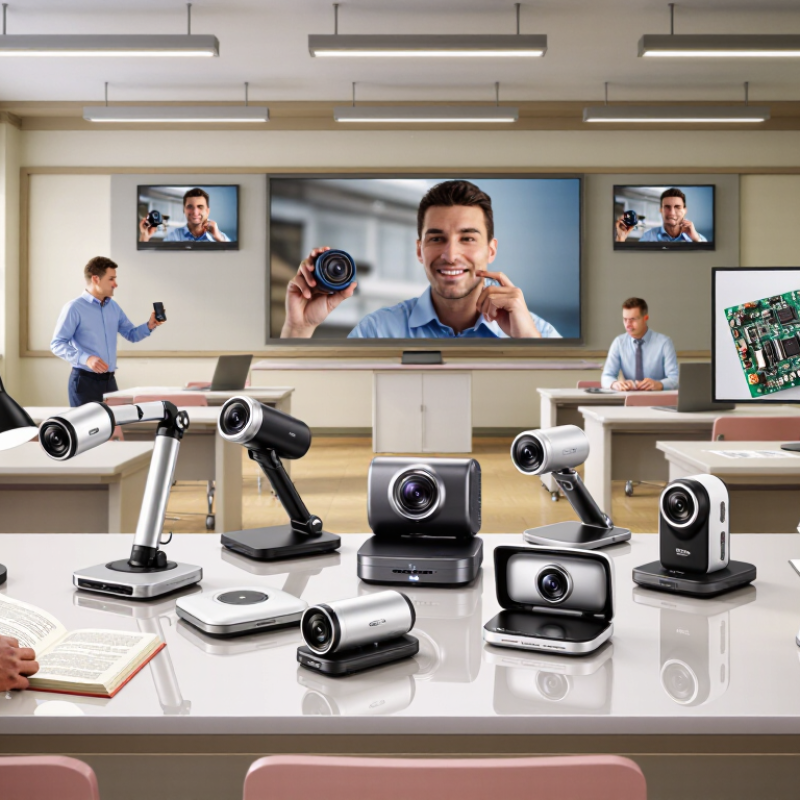
Top 10 Wireless Document Cameras for Global Buyers

What Defines a Wireless Document Camera and How It Works

A wireless document camera captures a live view of flat or three-dimensional objects and sends it to a display without a permanent video cable. A small lens and image sensor record a page, circuit board, or handwritten note beneath the camera. The device then transmits the image over Wi-Fi or through a wireless receiver. Some models also use an internal battery, so they can move between desks. Not magic. They still need power, a compatible display, and a stable connection.

The camera’s processor compresses image data before transmission; the receiving computer or display decodes it for viewing, annotation, or recording. Wireless networks can introduce delay, especially when rooms are crowded or the signal passes through walls.

A Telecom Advisory Services study for the Wi-Fi Alliance projected Wi-Fi’s global economic value at $4.9 trillion in 2025. That figure describes the wider Wi-Fi ecosystem, not document-camera performance. For global buyers, check supported network bands, local power options, resolution, and connection setup. Test a real page from the back of the room. Small text may blur, even when the image looks sharp up close. A wired fallback can be useful; wireless convenience is not always worth a dropped frame.

Key Features Used to Compare Wireless Document Cameras

Wireless document cameras should be compared by how reliably they capture and share real materials, not by headline specifications alone. Check image resolution and focus performance using a printed page with small text, then test a glossy photo that may reflect overhead lights. A sharp image matters. Auto-focus is useful, but it should settle quickly when a page or object moves.

Wireless connection quality can vary with room layout. A camera may work smoothly beside a receiver yet lag across a classroom with walls and other connected devices. Compare supported connection methods, practical range, and video delay under realistic conditions. Battery life also deserves a hands-on check: a camera that lasts through a full lesson is more useful than one needing a mid-session charge. Small details matter.

For global buyers, confirm compatibility with common computers, displays, and conferencing software in the intended setup. Look for clear setup instructions, replaceable cables, and accessible technical support. Portability depends on more than weight; a stable base and a folding arm can prevent awkward framing on a crowded desk. Specifications still leave gaps. I would treat advertised range and battery figures as starting points, since testing conditions differ. That judgment is imperfect, but a short trial with actual teaching materials often reveals more than a feature list.

Top 10 Wireless Document Cameras for Global Buyers

Choosing among the top 10 wireless document cameras starts with the work they must do. For live teaching, check whether text remains sharp when a page fills the frame. A practical test is to show a small-print worksheet, move the camera slightly, and watch for blur or lag. Smooth video matters, but so does a stable connection across a busy classroom or meeting room. Test it in the space where it will be used.

For global buyers, compare wireless options, charging methods, supported devices, and setup instructions. Network conditions and available features can vary by location, so confirm details with the seller before ordering. Look for adjustable lighting, a flexible arm, and simple controls; these help when glossy pages create glare or a document sits off-center. A built-in battery can improve portability, though real operating time depends on use.

No camera fits every room. Some compact models are easy to carry but may offer a smaller capture area, while larger units can take up valuable desk space. That trade-off deserves a closer look. Read the warranty terms, check replacement-part availability, and ask how software updates are delivered. A short hands-on trial can reveal more than a polished specification sheet.

Compatibility, Connectivity, and Regional Considerations

A useful comparison of the top 10 wireless document cameras starts with the devices they must work with. Check whether each model supports your computer’s operating system, classroom display, and meeting software. Wireless image sharing may require a companion app, while USB connection can offer a simpler fallback. Test both before buying. Small setup differences matter.

Connectivity varies by room and region. A camera may use 2.4 GHz or 5 GHz Wi-Fi, and the stronger option depends on local network equipment and nearby interference. Thick walls, crowded classrooms, and distant access points can cause lag. Look for clear details about resolution, frame rate, and supported wireless standards. A live page turn reveals more than a specification sheet.

Global buyers should also check power requirements, plug type, warranty coverage, and service availability in their country. Some models still need a cable for power, even when video travels wirelessly. Not fully wireless, then. Confirm whether the camera works with local network settings and whether its software receives updates in your region. I would not assume that a popular model will be easy to repair everywhere; distributor listings can be vague. Ask for written confirmation before placing a large order.

Top 10 Wireless Document Cameras for Global Buyers - Compatibility, Connectivity, and Regional Considerations

The entries below are common wireless camera configurations, not specific branded products. Compatibility and available features vary by model, operating system, software, and regional version; confirm the manufacturer’s specifications before purchasing.

No. Configuration Wireless Connectivity Typical Compatibility Best-Fit Use Regional and Purchasing Considerations
1 Dual-band Wi-Fi camera Connects over 2.4 GHz or 5 GHz Wi-Fi, depending on model. Usually requires a supported desktop or mobile app, or compatible network software. Check supported operating systems and Wi-Fi security standards. Classrooms and meeting rooms with a dependable local wireless network. Wi-Fi channel availability and permitted transmit power vary by country. Confirm that the device’s regional version supports local bands and channels.
2 2.4 GHz Wi-Fi camera Uses the 2.4 GHz band, which generally offers better reach through walls than 5 GHz but can be more congested. Requires a compatible app, computer, or network receiver; compatibility is not guaranteed by Wi-Fi support alone. Rooms where range and broad router compatibility matter more than peak wireless throughput. Check local radio approvals and network security support. Performance can be affected by crowded wireless environments.
3 5 GHz Wi-Fi camera Uses the 5 GHz band, which can provide less congested channels and higher data capacity at shorter range. Requires a 5 GHz-capable access point and supported viewing or capture software. Small rooms with nearby access points and a need for responsive image streaming. Some 5 GHz channels have country-specific restrictions or indoor-use requirements. Verify regional channel support and deployment rules.
4 Wi-Fi Direct camera Creates a direct wireless connection between the camera and a compatible device, without relying on a standard router. The computer, tablet, or phone must support the camera’s connection method and app. Simultaneous internet access may depend on the host device. Portable lessons, demonstrations, or temporary setups without a shared network. Confirm supported device platforms and connection limits. Local radio regulations still apply even when no router is used.
5 Wireless receiver with USB-A connection A dedicated receiver links wirelessly to the camera and plugs into a USB-A port on the host. Host computers need a compatible USB-A port and any required driver or capture software. USB-A connector fit alone does not ensure software compatibility. Rooms with a fixed computer and a straightforward receiver-based setup. Check whether the receiver is included, whether drivers require administrator access, and whether local approvals cover both camera and receiver.
6 Wireless receiver with USB-C connection A dedicated wireless receiver connects to the host through USB-C. Requires a compatible USB-C port and supported capture software; some hosts may need an adapter if they lack the required port. Newer laptops and mobile workstations that use USB-C for accessories. Confirm the port’s data and power capabilities, included accessories, and operating-system support. USB-C describes the connector, not guaranteed functionality.
7 Miracast-compatible display setup Uses Miracast screen mirroring when supported by the camera, receiver, and display chain. Miracast support depends on the operating system, wireless hardware, drivers, and receiving display or adapter. It should not be assumed on every computer. Presentations to compatible displays where direct screen mirroring is preferred. Test the complete device combination before purchase, especially in managed IT environments where wireless display features may be restricted.
8 AirPlay-compatible viewing setup Uses AirPlay through a supported camera workflow or compatible receiver; availability depends on the specific implementation. Requires compatible Apple devices or an AirPlay-capable receiver and supported camera software. It is not a universal wireless display standard. Organizations using compatible Apple devices and displays. Check network discovery policies, platform support, and whether the camera itself or a separate receiver provides AirPlay functionality.
9 Battery-powered wireless camera Streams through Wi-Fi or a dedicated wireless receiver; battery operation reduces dependence on a nearby power outlet. Compatibility follows the camera’s app or receiver requirements. Battery life varies with use, settings, and wireless conditions. Mobile teaching, field demonstrations, and flexible room layouts. Review charging options, battery replacement policy, transport restrictions, and the included charger’s voltage and plug compatibility.
10 Hybrid wireless camera with wired fallback Supports wireless operation plus one or more wired connections, such as USB or HDMI, depending on the model. Wireless use depends on supported software; wired fallback depends on the host’s ports and the camera’s output modes. Shared rooms where wireless convenience and a backup connection are both important. Verify cable and adapter availability, local power requirements, regional certifications, and whether all advertised modes work with the intended host devices.

How to Choose a Camera for Different Professional Needs

Choose a wireless document camera by matching it to the work it must do. For a teacher showing pencil notes, a flexible arm and quick focus may matter more than cinematic detail. For an engineer reviewing small components, sharp close-ups, stable positioning, and even lighting are essential. Test it live. Place a printed page beneath the lens and check whether fine text stays readable when projected on a large screen.

For remote meetings, prioritize reliable wireless connection, simple sharing, and compatibility with the computer or display already in use. A built-in battery helps during mobile demonstrations, but check its working time against a full class or presentation. In busy rooms, autofocus should settle quickly when hands enter the frame. A microphone can be useful, though it should not replace a separate audio setup in a noisy space. Small details count: a loose cable, laggy preview, or cramped control panel can interrupt a lesson.

Global buyers should also verify power requirements, software support, and available connection options for their local equipment. Ask whether the camera works without installing extra software; this can simplify use across shared devices. A feature-rich model is not automatically the best fit. It may take longer to set up, and I would not assume wireless performance is identical in every room. Try it in the actual workspace, with the real documents and lighting, before deciding.

FAQS

How can I check image quality before choosing a wireless document camera?

Show a worksheet with small print, then move the page slightly. Check whether letters stay sharp and focus settles quickly.

How do glossy pages affect camera performance?

Overhead lights can create glare on glossy photos. Try adjusting the lighting and camera angle; the result may still be imperfect.

How should I test wireless performance?

Try a live page turn from the actual classroom or meeting room. Walls and nearby devices may cause lag.

What should I know about battery life?

Test the camera during a full lesson. Advertised battery figures are only a starting point.

Does wireless video mean the camera needs no cables?

Not always. Some cameras send video wirelessly but still need a cable for power.

Which device and software details should I confirm?

Check operating system, display, and meeting software compatibility. Some wireless setups also require a companion app.

What regional details matter for global buyers?

Confirm power requirements, plug type, warranty coverage, service availability, and software updates in your country.

How do size and portability affect everyday use?

A compact camera is easier to carry, but may capture less area. A stable base and folding arm can help on a crowded desk.

Should I rely on advertised range and specifications?

Treat them as estimates. Real rooms differ, so a short hands-on trial may reveal more.

Conclusion

This guide explains what a Wireless Document Camera is and how it captures and shares images of documents, books, and objects without relying on a direct cable connection. It outlines the key factors buyers can use to compare options, including image clarity, mobility, battery life, wireless stability, controls, and ease of setup. The overview of ten camera types highlights how different designs may suit classrooms, offices, presentations, and remote collaboration.

The guide also considers compatibility with computers, displays, and conferencing systems, along with connectivity and regional differences that may affect setup and everyday use. Rather than treating one model as right for everyone, it offers a practical framework for matching a camera to specific professional needs, available workspace, portability requirements, and preferred way of sharing visual materials.

Oliver

Oliver

Oliver is a marketing professional with a deep understanding of the company’s products and the needs they are designed to meet. He regularly contributes expert articles to the company website, sharing clear, practical insights that help readers make informed decisions and get more value from the......