A USB Document Camera turns a physical page, worksheet, or small object into a live image on a computer. Its camera head captures the scene, while a USB cable carries video and often power to a connected device. The image can then appear in presentation software, a video meeting, or a classroom display. Simple in concept. Useful in practice.
“Good document-camera teaching makes the details visible, not just the page,” says Alex Morgan, an educational technology specialist. That principle matters when students need to inspect a pencil mark, a circuit connection, or the fine print on a diagram. Many models also include autofocus, adjustable lighting, and flexible arms. These features help users frame close-up views without repeatedly moving the object. Results still depend on setup. A tilted camera, dim room, or glossy sheet can make details harder to see.
This guide explains what a USB Document Camera is, how its main parts work, and what happens between capture and display. It also considers practical limits, including image resolution, software compatibility, and cable reach. The device can make demonstrations clearer, but it cannot replace thoughtful teaching. Sometimes a camera misses the edge of a page. That small flaw is worth noticing. Understanding the connection and controls helps users get a steadier, more useful view.
What a USB Document Camera Is
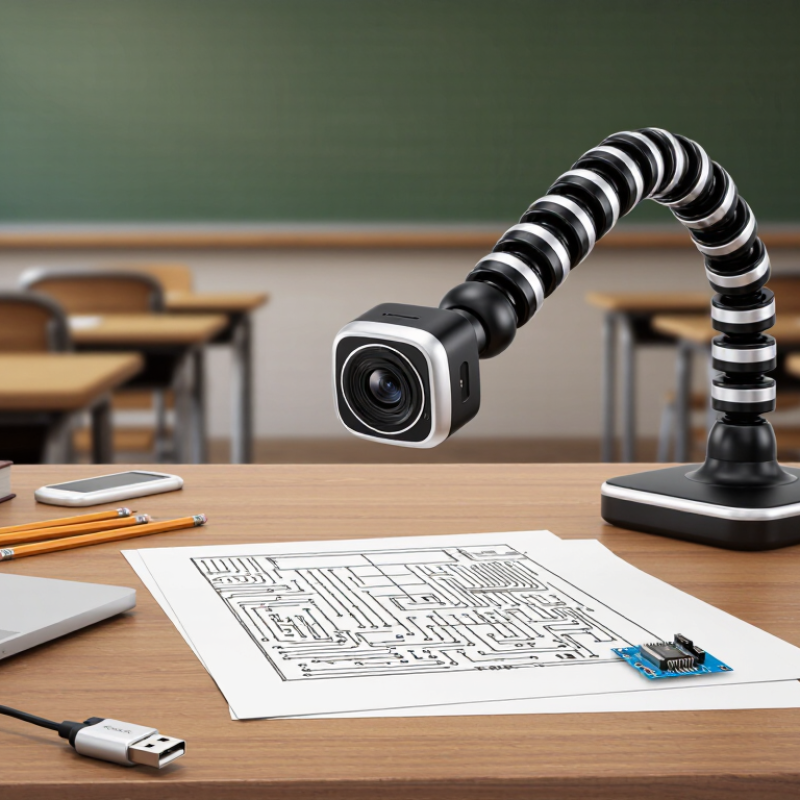
A USB document camera is a tabletop imaging device that sends a live view of papers or objects to a computer through a USB connection. Its camera head usually sits above a work area, while an adjustable arm helps frame a worksheet, book page, or small object. Many models include built-in lights, useful when a hand casts a shadow across the page. It can capture still images or stream video into teaching, meeting, or recording software. In plain terms, it turns a desk into a camera stage.
The term is less precise than it sounds. Some devices need dedicated software; others work with common video applications. The USB Implementers Forum’s USB 2.0 specification lists a maximum signaling rate of 480 Mbps, while its USB 3.2 Gen 1 specification lists 5 Gbps. These are interface limits, not promises of sharper images. The camera sensor, image processing, cable, and computer also affect performance. Faster is not always clearer.
For a teacher, the practical test is simple: place a page under the lens and check whether small print stays readable while a hand moves. A stable base, flexible arm, and even lighting matter more than a long feature list. Check compatibility before class, too. That step is easy to miss. A USB document camera is best understood as a close-up camera designed for live sharing—not merely a webcam pointed downward.
What Is a USB Document Camera and How Does It Work?
A USB document camera captures a physical page or object with an image sensor, then sends digital image data to a connected computer over USB.
Nominal USB signaling rates are shown in megabits per second. These are interface rates, not guaranteed camera video speeds; actual throughput depends on the camera, connection, and image settings.
Key Components and Their Roles
A USB document camera turns a physical page into a live digital image. Its lens gathers light, while the image sensor converts the scene into pixels. Resolution matters, but so do focus, exposure, and the sensor’s ability to handle uneven classroom lighting. A small printed label may look crisp under a desk lamp yet blur near the frame’s edge. The details matter.
The USB connection carries image data to a computer, where driver software or a viewing application displays and may capture it. USB-IF specifications rate USB 2.0 at up to 480 Mb/s and USB 3.2 Gen 1 at up to 5 Gb/s. These are signaling rates, not guaranteed video speeds; actual throughput depends on the device and system. A flexible arm, stable base, and adjustable light also affect usability. Even a capable sensor can produce shadows if the page sits too close to the lens. I have seen simple setup choices matter more than a headline resolution figure.
Tips: Test focus with fine print, then move the camera until the whole page looks even. Keep the USB cable secure, and check that the chosen software recognizes the camera before presenting. A specification sheet helps, but it cannot predict every room.
How the Camera Captures and Processes an Image
A USB document camera turns a page or object into a live digital image. Its lens gathers reflected light and focuses it onto a CMOS sensor, where photosites convert light into electrical signals. A processor reads those signals, estimates color, and adjusts exposure and white balance. Fine print can look crisp, but glossy paper may create glare. Light matters.
The processor then converts the sensor data into a video stream for a computer. USB-IF specifications list maximum signaling rates of 480 Mbps for USB 2.0 and 5 Gbps for USB 3.2 Gen 1. For comparison, uncompressed 1920-by-1080 video at 30 frames per second and 24 bits per pixel requires about 1.49 Gbps, before overhead. That calculation explains why a camera may use compression, reduced color information, or a lower frame rate. Actual throughput is lower than the nominal link rate.
At the computer, compatible capture software decodes the stream and displays each frame. Automatic exposure can brighten a shaded worksheet, though it may react slowly when a hand enters the frame. USB Video Class specifications support standardized video streaming, helping compatible devices work with general-purpose software. Still, results depend on room lighting, focus, and the page’s surface; specifications cannot fix a shaky stand.
What Is a USB Document Camera and How Does It Work? — How the Camera Captures and Processes an Image
| Stage or Component |
What Happens |
How It Affects the Image |
| Document positioning |
A page, book, or other object is placed beneath the camera head, within its field of view. |
Distance and angle affect how much of the subject is visible and whether the image appears distorted. |
| Lens and focus |
The lens gathers reflected light and directs it onto the image sensor. Focus may be adjusted automatically or manually, depending on the camera. |
Correct focus keeps text, diagrams, and object details sharp. Some cameras also offer digital zoom, which enlarges the image but does not add optical detail. |
| Image sensor |
A CMOS sensor converts incoming light into electrical signals. The sensor samples the scene as pixels. |
Resolution describes the number of pixels captured. Common advertised formats include Full HD (1920 × 1080) and 4K UHD (3840 × 2160); available formats vary by model. |
| Lighting and exposure |
Built-in lights, room lighting, and exposure controls determine how much light reaches the sensor. The camera may adjust exposure and white balance automatically. |
Even lighting improves readability. Glare, shadows, or incorrect exposure can reduce contrast and obscure fine details. |
| Image processing |
Camera electronics process sensor data into video frames. Processing may include color correction, noise reduction, sharpening, and compression. |
These adjustments can make the live image clearer, but processing features and image quality differ among cameras. |
| USB connection |
The camera sends image data to a computer or compatible device over USB. Depending on the device and connection, USB may also provide power. |
USB version, cable, device compatibility, and camera settings can affect available resolution and frame rate. |
| Computer and software |
Compatible video software receives the camera feed, displays it, and may allow users to capture still images, record video, or share the view. |
Many document cameras work with software that accepts a standard USB video source, though supported features depend on the operating system and application. |
| Displayed or saved image |
The computer displays the live feed or saves a captured frame or recording in a supported format. |
The final result depends on the camera’s capture settings, software, lighting, focus, and the capabilities of the connected display or recording system. |
Specifications and features vary by device; resolution and connection details should be checked for the specific camera and computer setup.
How USB Transfers Images to a Computer
A USB document camera turns a page, worksheet, or small object into a digital image. Its lens focuses reflected light onto an image sensor, which converts light into electronic signals. The camera processes those signals into frames and sends them through a USB cable to a computer. In simple terms, USB carries the image data. It does not create the image.
The computer receives the data through its operating system and camera software. With a compatible driver, or a common USB video standard, the camera may appear as a selectable video source. The software then displays the live view, adjusts settings, or saves a still image. You can watch the page appear.
A sharp image depends on more than the camera: focus, room lighting, resolution, and USB bandwidth all matter. For instance, fine pencil marks may look faint under a desk lamp, even when the camera is working correctly.
Higher frame rates and resolutions require more data, so an older port or busy computer can cause lag. USB may also supply power, though some setups need a separate adapter. The handoff is usually quick, but not always instant. I find it easy to blame the cable; checking focus and lighting first is often wiser.
Common Features and Practical Uses
A USB document camera combines a small image sensor, a lens, and an adjustable stand. It connects to a computer through a USB cable and sends live video to compatible meeting or teaching software. Common features include autofocus, adjustable exposure, and built-in lights for dim rooms. Some models also capture still images or record video. A flexible neck helps position the camera over a worksheet, book, or small object. Keep the page flat and the camera steady. Even a slight tilt can make text harder to read.
These cameras are useful in classrooms, remote tutoring, and office demonstrations. A teacher can show handwritten steps on paper, while students follow along on a shared screen. At home, someone can display a craft technique or explain a diagram without passing materials around. In an office, staff can present a printed form or sketch during a video call. Setup is usually simple, but software permissions and USB ports can cause delays. The lighting can be uneven, too. I find that a quick focus and framing check saves awkward pauses, though it is easy to forget when a meeting starts.
A document camera is not always a replacement for a flatbed scanner; live viewing and archiving are different jobs.
Conclusion
A USB Document Camera is a compact imaging device that captures pages, objects, or other materials and displays them on a computer. Its main components typically include a camera sensor, a lens, a support arm or stand, lighting, and a USB connection. Together, these parts help keep the subject in view, focus on details, and provide suitable illumination for a clear image.
When the camera is aimed at a document or object, its sensor converts the incoming light into digital image data. The device processes this data and sends it through the USB cable to a connected computer, where compatible software can display or capture the image. Many models offer features such as adjustable positioning, autofocus, image controls, or video capture. They can be useful for presenting printed materials, demonstrating small objects, sharing handwritten notes, or supporting instruction and collaboration.